How to post a story live photo on IG
October 22, 2026 · instapv.com.co
How to post a story live photo on IG. A Live Photo is an Apple camera format. When you take the picture, the phone also keeps a short moment of motion and sound around the shutter. Instagram can post that motion to a story on an iPhone, so the frame moves instead of sitting as a still. Android motion photos are a different file. They do not always travel into Instagram as a Live Photo, even when the gallery shows a short clip. If you are on an iPhone, the steps below are the ones that match the format. If you are on Android, you will usually post the motion as a normal video story instead.
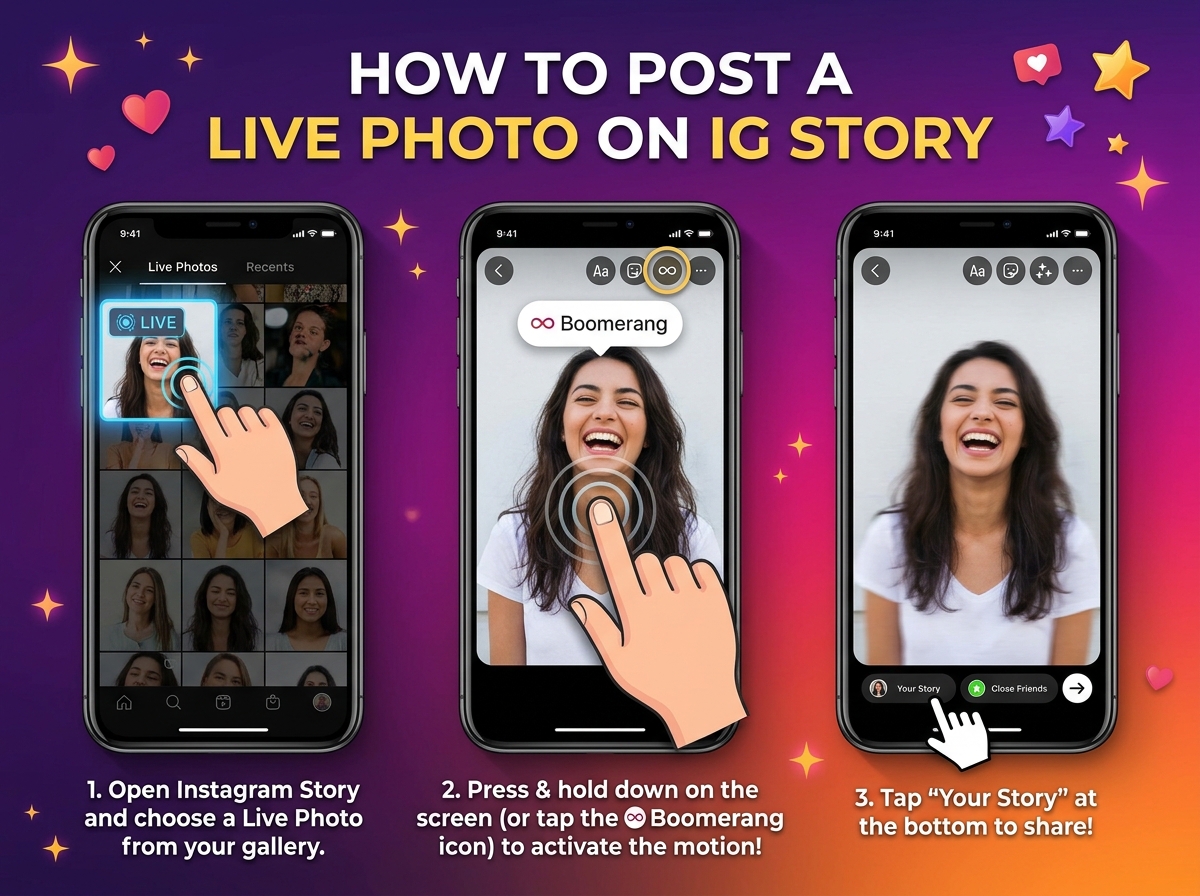
Check that it is still a Live Photo
On the iPhone, confirm the picture is still a Live Photo. Open it in the Photos app. You should see the Live badge, and a press-and-hold should play the moment. If you edited the picture in an app that flattened it to a JPEG, the motion is already gone. Instagram cannot invent the motion from a still. Take the picture again with Live Photos turned on in the iPhone camera, or choose a different frame that still has the badge.
Open Instagram, go to your story camera, and pull the frame from the camera roll rather than from a screenshot. Select the Live Photo. If Instagram recognizes it, the editor shows a live or motion control, often a small badge on the preview. Leave that control on if you want the story to move. If you turn it off, you post the still only. Add stickers or text after you confirm the motion is still enabled, because some edits are fine and a heavy export is what flattens the file. Pinch and place type so it does not cover the part that moves.
Choose who can see it
Choose the audience before you send it. Your story can be public to your followers or limited to close friends. A public story can be seen by people who look up the username, including on a public viewer, for about a day. A close-friends story stays with that list and will not appear on instapv.com.co. Post when the preview plays the motion on your own phone. Then view your story from the ring on your profile. Hold the frame if the app says the motion plays on hold. If you only see a still, the Live badge was off in the editor or the file was flattened before upload.
Sound is optional and often unwanted on a story people tap through in public. Preview with the sound on once, then mute it in the editor if the clip has background noise. The motion can stay while the audio goes. Captions are not automatic. If the moment needs context, a short text sticker is clearer than hoping the motion explains itself in two seconds.
Share from the Photos app
Sharing from the Photos app’s share sheet into Instagram story is the other route. Tap the Live Photo, tap share, choose Instagram, and pick story if the sheet offers it. Check the same motion badge in Instagram before you post. The share sheet sometimes sends a still. If the badge is missing, cancel and start from Instagram’s camera roll instead, where the Live control is easier to see.
People watching in the app see the motion as part of the story frame. People looking at a public story on instapv.com.co see the file that was actually published. If the upload kept the motion, the tile can be a video and the download saves that file. If the upload was a still, the tile is a photo. The time under the tile is when it was posted, not the moment the shutter closed, if those differ. A Live Photo from last month, posted today, is a story from today.
If the motion never appears, stop changing settings in a loop. Check Live Photos in the iPhone camera, confirm the badge in Photos, upload from Instagram’s roll, and leave the motion control on. Android users should trim the motion photo’s video and post it as a video story within the length the camera allows. Either way the story still expires in about a day unless you add it to a highlight from your archive. Post the moving frame on purpose, watch it once on your own ring, and leave it up only if the motion is the one you meant to share.